Extra Credit 7 - Wildcards
- Extra Credit 7 - Wildcards
Video:
Wildcard Extra practice/review
What will you learn
- Learn how wildcard patterns are used to match groups of filenames efficiently
- Understand how the
*,?, and[]wildcard patterns work in Linux - Practice using wildcard patterns with commands such as
ls,mv,cp, andrm - Learn the difference between filename globbing and brace expansion
- Develop problem-solving skills by organizing and manipulating large groups of files from the command line
Description
Wildcards, also known as filename globbing, are a shell feature that uses special characters to match groups of filenames quickly. Because files are constantly being created and managed, it is useful to be able to work with multiple files at the same time.
Why and when should I use a wildcard?
Using wildcards can save you a lot of time. Imagine you need to move all the text files in a folder. You could move them one by one if you know each file’s name. But what if there are 300 files? Moving them one at a time would be slow and inefficient. Wildcards help you by allowing you to match all files that meet a certain pattern or criteria, so you can move them all at once with a single command. Here are some examples:
- Copy all photos from a drive to a flash drive.
- Delete certain types of files from a folder.
- List all files that have a date in their name.
In this guide, we will focus on the three most commonly used wildcard patterns:
| Wildcard | definition | example |
|---|---|---|
* | matches 0 to any number of characters | ls ~/Downloads/*.png |
? | matches 1 character | ls ~/Downloads/f?ll.sh |
[] | matches 1 character from a set | ls ~/Downloads/f[0-9]ll.sh |
Note:
Shell globbing also includes patterns like[!...], extended globs(@( ), !( ), etc.,)depending on shell settings. However, this is not something we will cover here.
What does “matches x number of characters” mean?
This refers to the number of characters in the file name that can be matched each time the wildcard is used in a command. For example, here is an illustration using the * wildcard:
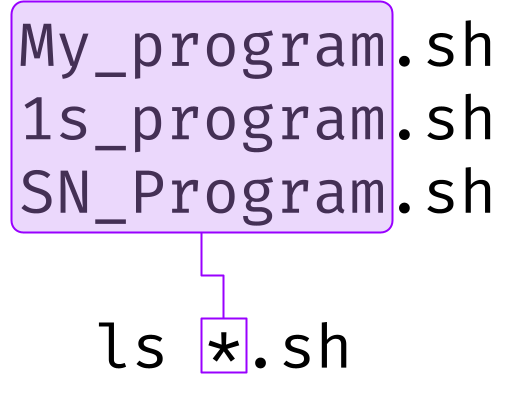
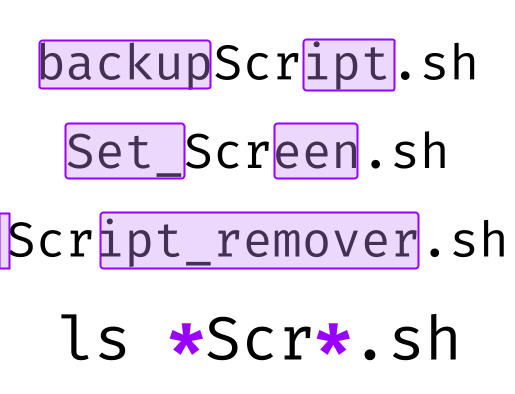
Notice that because the * wildcard matches zero or more characters, the command ls *Script*.sh would match files such as Script_remover.sh and BackupScript.sh.
To practice the wildcards, run this command:
curl https://cis106.com/assets/extras/wildcards.sh | bash
This will create a directory in your home directory called wildcard_extra_practice. This directory contains multiple randomly generated files and directories (created at random). All the examples here will use the files in this directory.
The * (asterisk) wildcard
Examples:
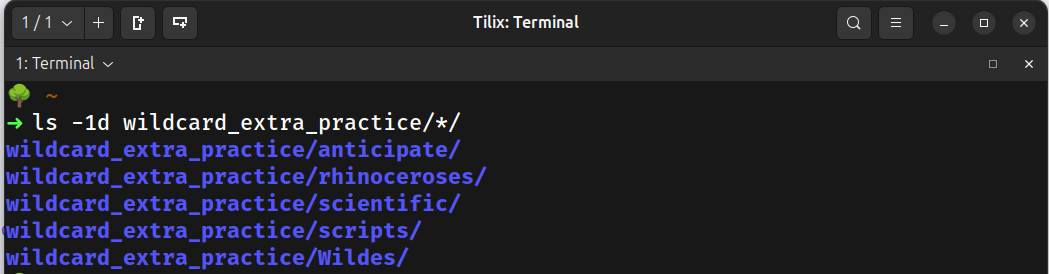
- List all of the directories inside a given directory without listing their content
ls -1d wildcard_extra_practice/*/
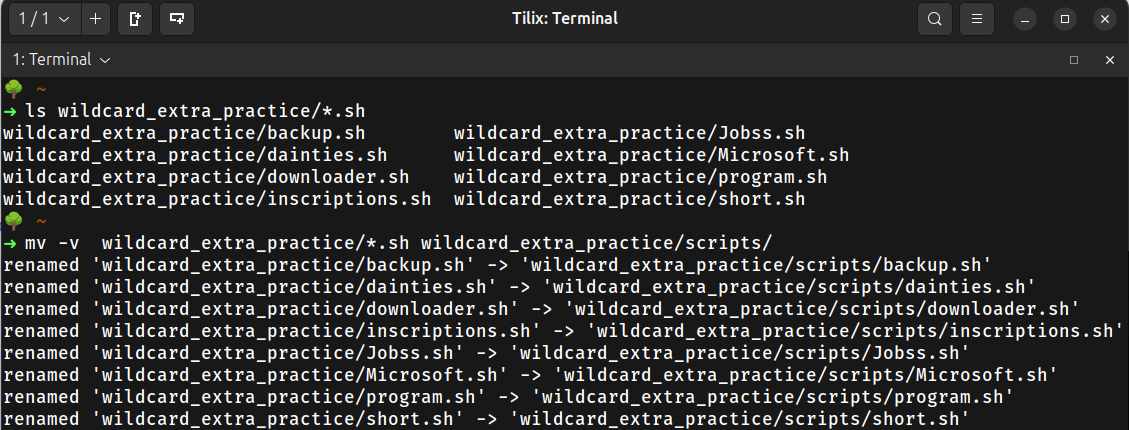
- Move all
.shshell script filesmv wildcard_extra_practice/*.sh wildcard_extra_practice/scripts/
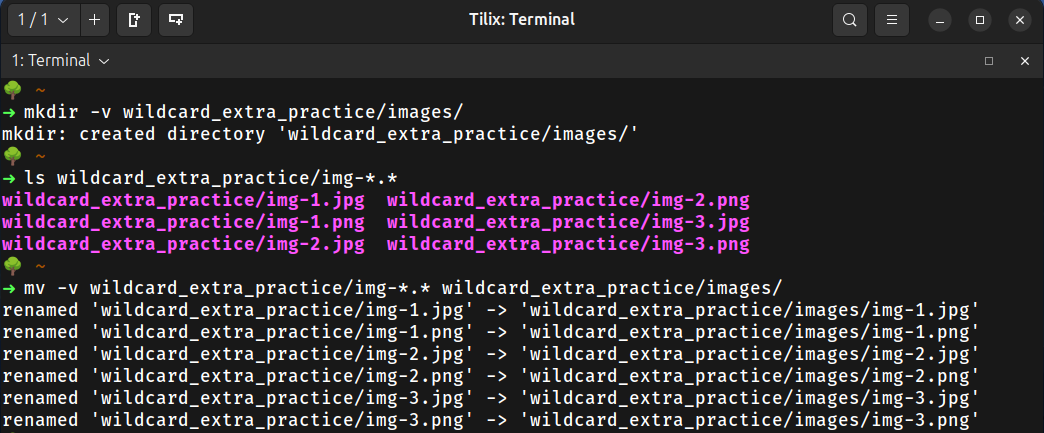
- List and then move all the image files in the wildcard_extra_practice directory. You will need to create a directory first.
mkdir wildcard_extra_practice/images/ls wildcard_extra_practice/img-*.*mv -v wildcard_extra_practice/img-*.* wildcard_extra_practice/images/
The ? (question mark) wildcard
Examples:
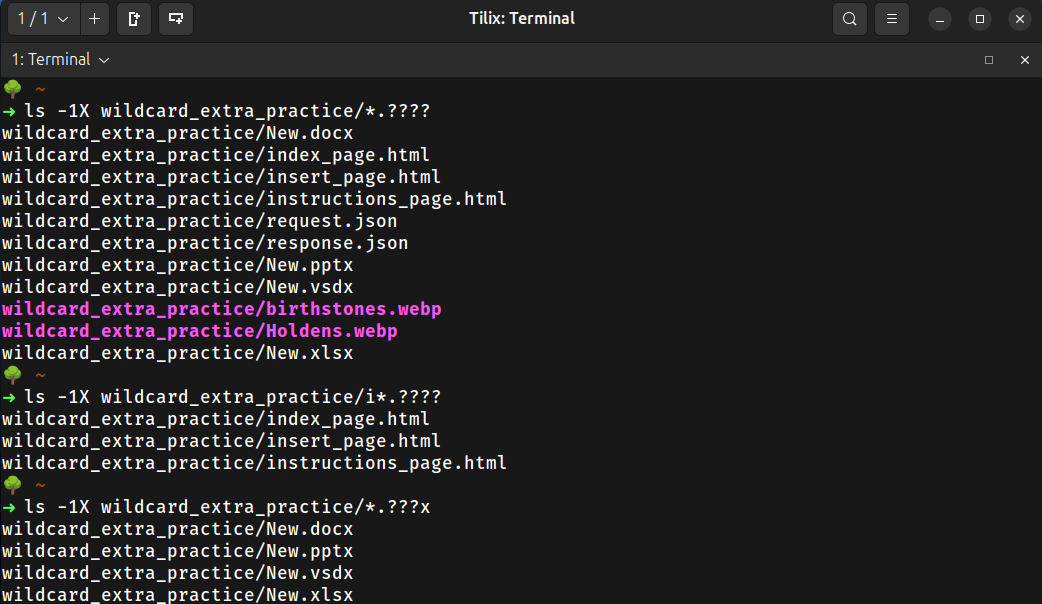
- List all files with a four-character file extension
ls -1X wildcard_extra_practice/*.????
- List all files with a four-character file extension that start with the letter
ils -1X wildcard_extra_practice/i*.????
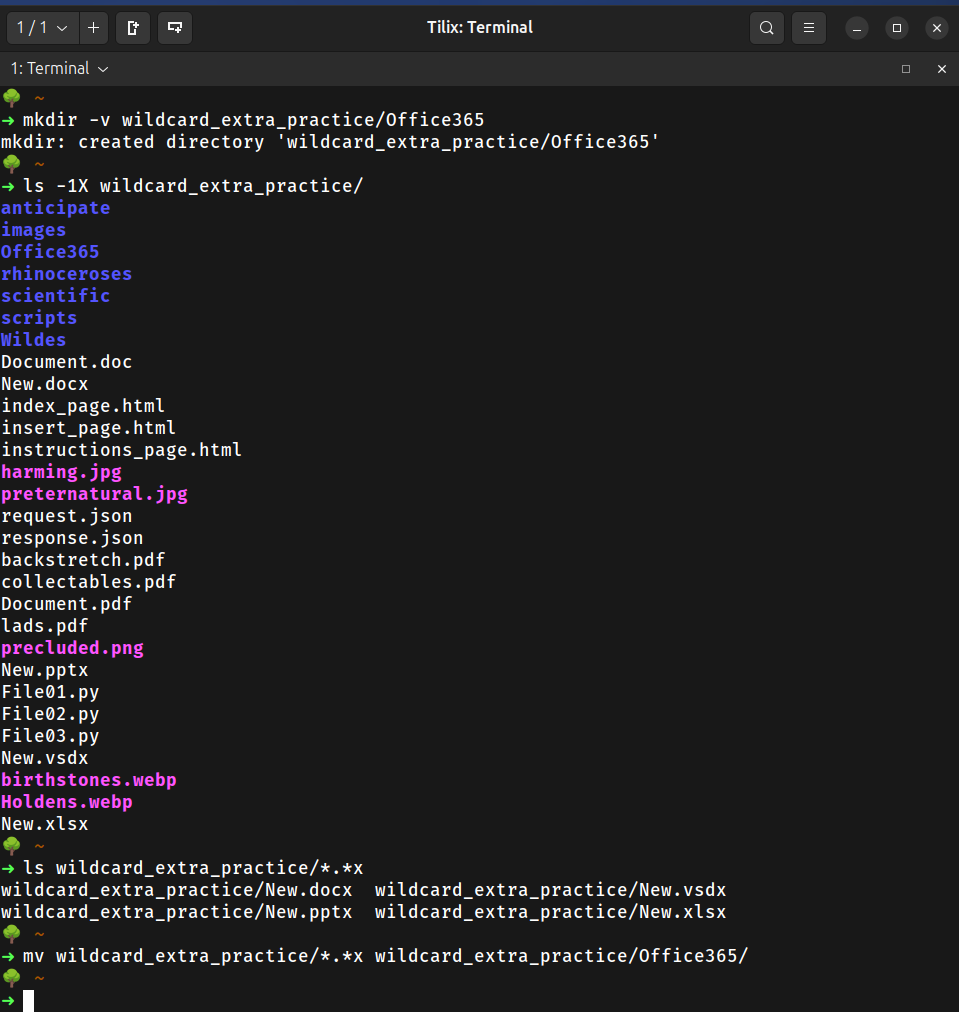
- List all Microsoft Office 365 files
ls -1X wildcard_extra_practice/*.???x
The [] (square brackets) wildcard
| POSIX class | Represents | Means | Example using ls |
|---|---|---|---|
[:upper:] | [A-Z] | Uppercase letters | ls *[[:upper:]]* - List files with uppercase letters |
[:lower:] | [a-z] | Lowercase letters | ls *[[:lower:]]* - List files with lowercase letters |
[:digit:] | [0-9] | Digits | ls *[[:digit:]]* - List files containing digits |
[:alpha:] | [A-Za-z] | Alphabetic characters | ls *[[:alpha:]]* - List files with alphabetic characters |
[:alnum:] | [A-Za-z0-9] | Alphanumeric characters | ls *[[:alnum:]]* - List files with alphanumeric characters |
[:space:] | [ \t\n\r\f\v] | Whitespace characters | ls *[[:space:]]* - List files with spaces in names |
[:punct:] | Punctuation | Punctuation characters | ls *[[:punct:]]* - List files with punctuation characters |
[:blank:] | [ \t] | Space and tab | ls *[[:blank:]]* - List files with spaces or tabs |
[:xdigit:] | [0-9A-Fa-f] | Hexadecimal digits | ls *[[:xdigit:]]* - List files with hexadecimal characters |
[:cntrl:] | Control characters | Control characters | ls *[[:cntrl:]]* - List files with control characters |
[:print:] | Printable | Printable characters | ls *[[:print:]]* - List files with printable characters |
[:graph:] | Graphical | Visible characters (not spaces) | ls *[[:graph:]]* - List files with graphical characters |
[:word:] | [A-Za-z0-9_] | Word characters (alphanumeric + underscore) | ls *[[:word:]]* - List files containing word characters |
[:ascii:] | ASCII characters | All ASCII characters (0-127) | ls *[[:ascii:]]* - List files containing ASCII characters |
Note:
[:word:]and[:ascii:]are GNU extensions and are not portable across all systems/shells.
Examples:
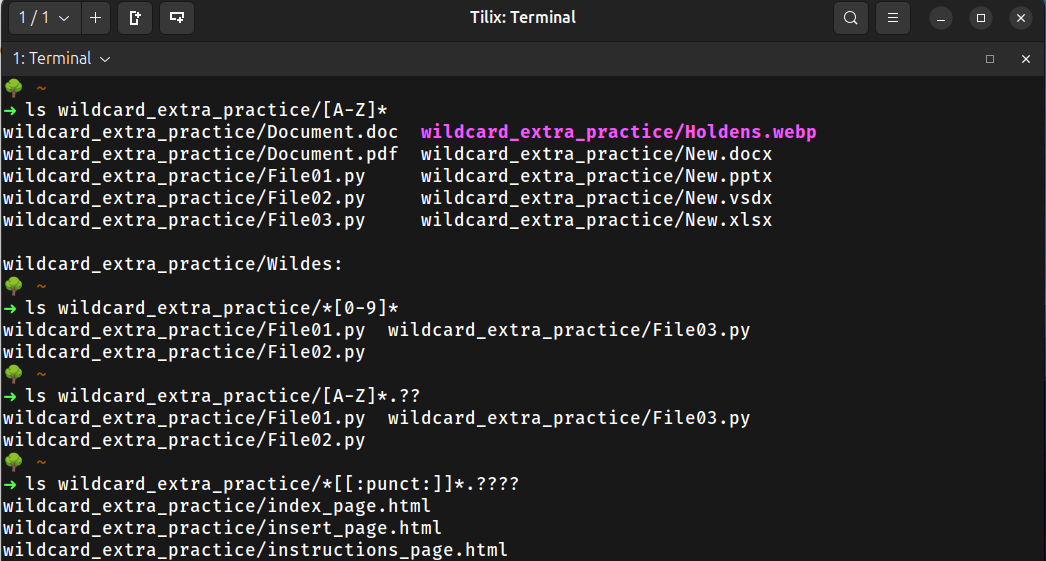
- List all the files that start with a capital letter
ls wildcard_extra_practice/[A-Z]*
- List all the files that contain a number in their name
ls wildcard_extra_practice/*[0-9]*
- List all files that start with a capital letter and have a two-character file extension
ls wildcard_extra_practice/[A-Z]*.??
- List all the files that contain a punctuation character in the name and a 4 character file extension
ls wildcard_extra_practice/*[[:punct:]]*.????
Note:
- Wildcards also have their limitations.
- For example, “List all the files that do not contain a digit in the file name” You may assume that the approach would be
ls *[!0-9]*. However, this does not work. This wildcard translates to:
“all files and directories in the current directory whose names contain at least one character that is not a digit (0-9)” However, if you ever need this, here are two approaches:- Use ls + grep:
ls *[!0-9]* | grep -v '[0-9]'
- Use find:
find ./ -not -name '*[0-9]*'
findis often preferred in scripts becauselsoutput is intended for human readability and can be difficult to process reliably.
- Use ls + grep:
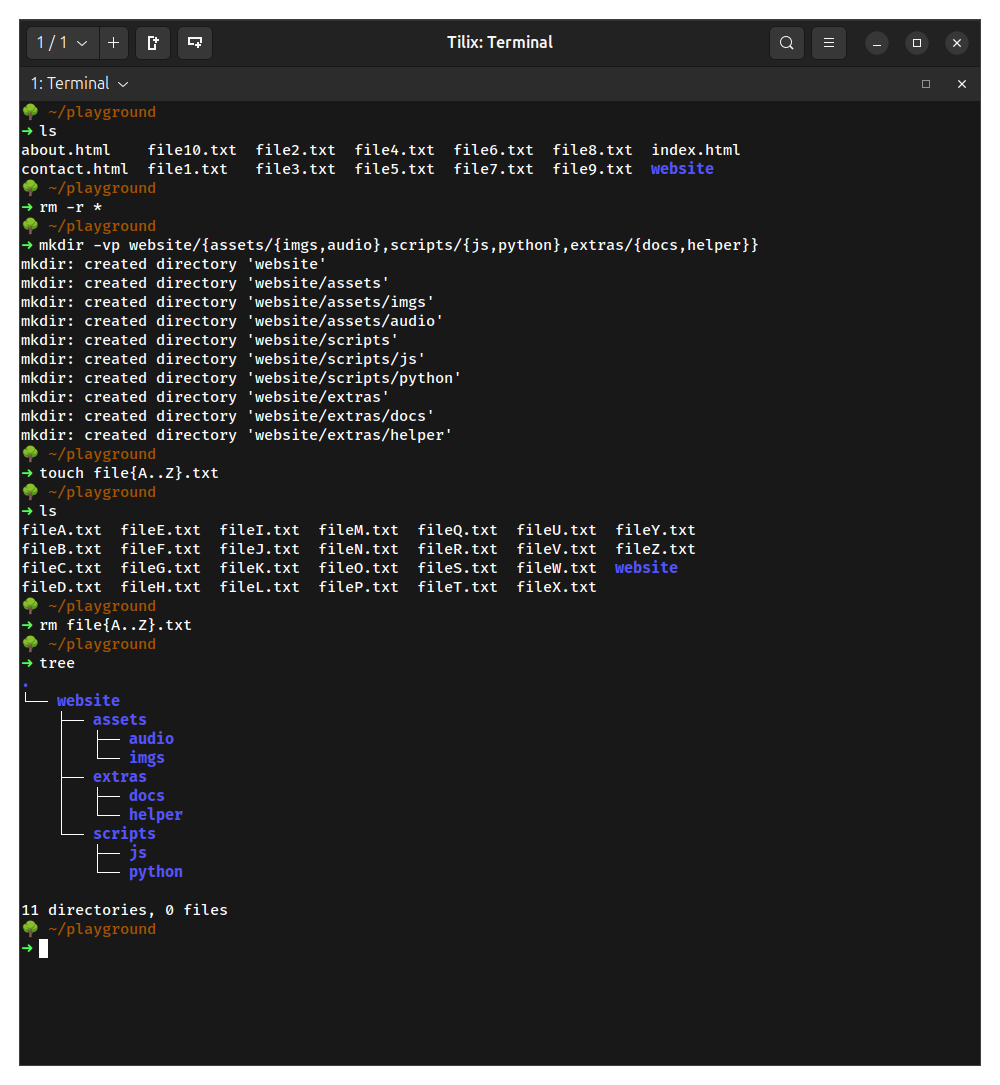
Brace Expansion
Brace expansion is not a wildcard but a feature of the bash shell that allows you to create strings without needing loops. The strings can be filenames, sequences, or patterns. Brace expansion is processed before filename globbing and variable expansion.
Brace expansion is used in the following manner:
- Open brace (
{) + pattern separated by commas with no spaces + closing brace (}).
Examples:
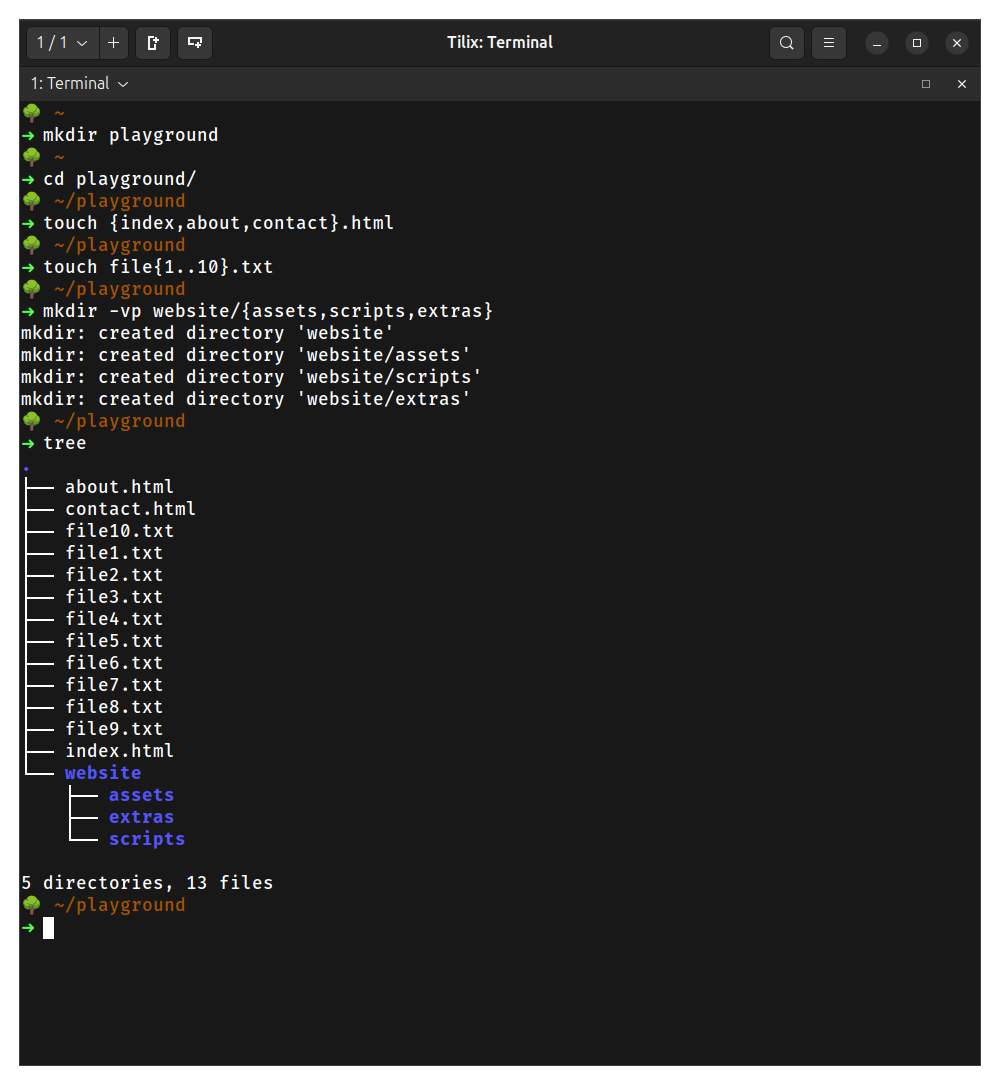
- Create 3 html files
touch {index,about,contact}.html
- Create 10 files numbered 1 to 10
touch file{1..10}.txt
- Create a directory structure in a single command:
mkdir -vp website/{assets,scripts,extras}
- Create an even more complex directory structure
mkdir -vp website/{assets/{imgs,audio},scripts/{js,python},extras/{docs,helper}}
- Create files in increments using A to Z in the file name
touch file{A..Z}.txt
- Remove the same files created in the previous example:
rm file{A..Z}.txt
Challenge Practice 1:
- Inside the
wildcard_extra_practicedirectory, create a new directory called:Office365. - Research a list of Microsoft Office 365 file extensions and use that knowledge to identify which files in the
wildcard_extra_practicedirectory are Office 365 files. You should also research any file extension that you do not recognize from the files in thewildcard_extra_practicedirectory. - Use a wildcard to move all the Office 365 files to the
wildcard_extra_practice/Office365directory
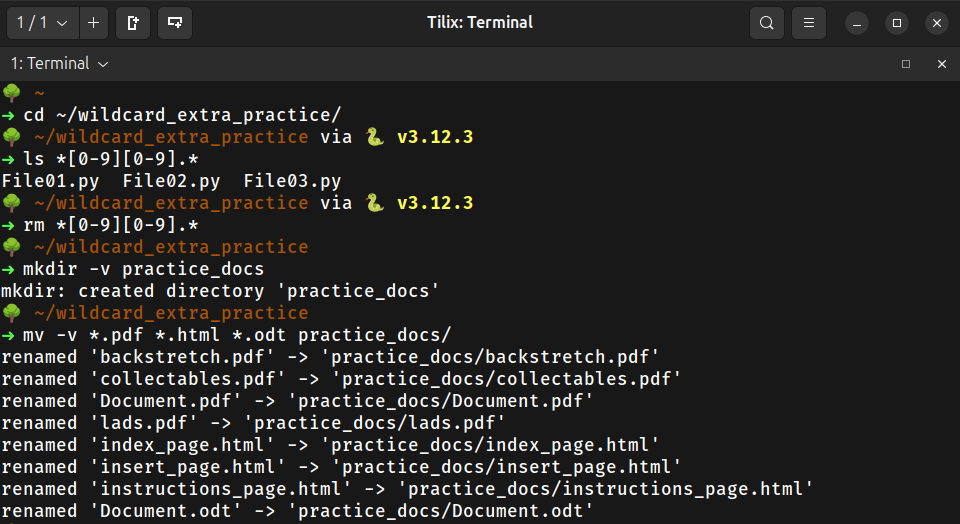
Challenge Practice 2:
- Change your current working directory to
~/wildcard_extra_practice - List and then remove all the files that contain two numbers in their file name right before the file extension. Be very careful with this step.
- Create a new directory called
practice_docs. - Move all the
html,odt, andpdffiles topractice_docs
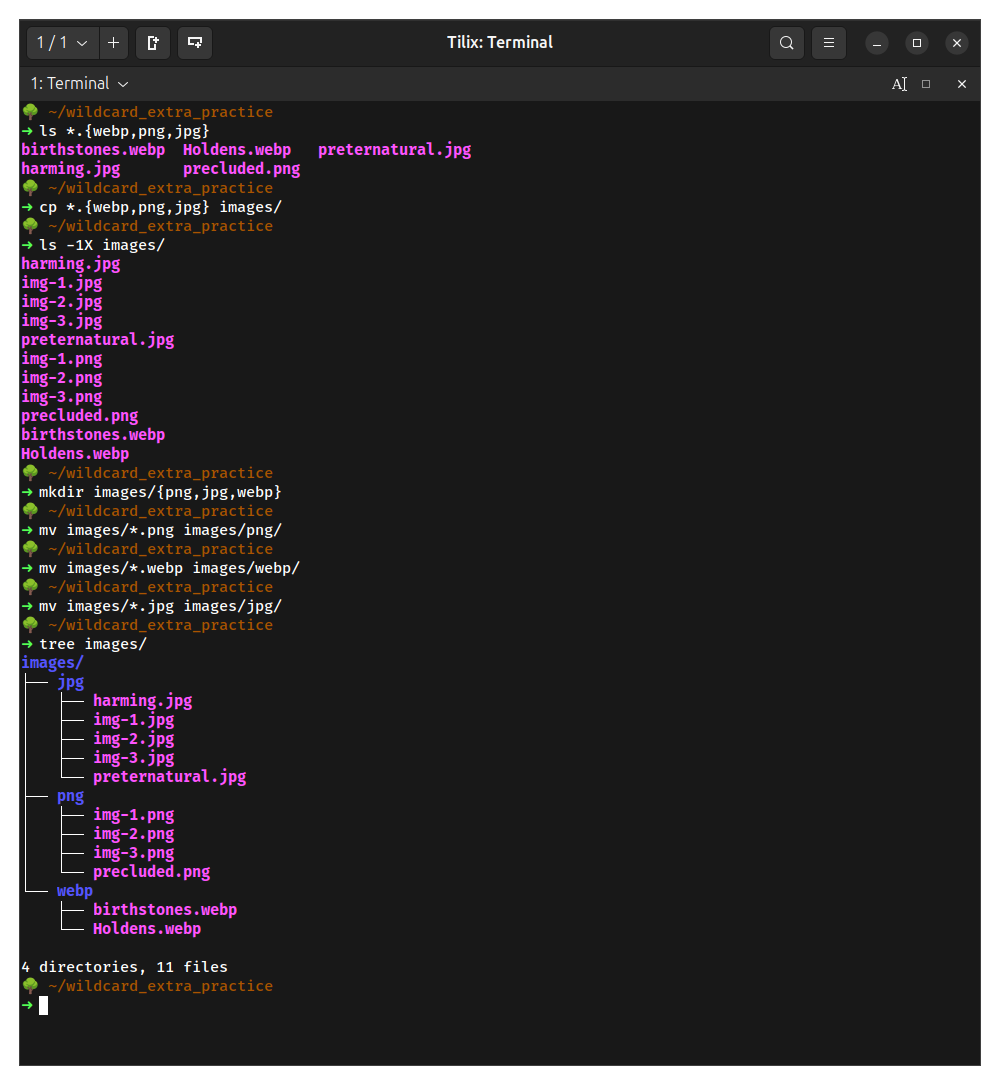
Challenge Practice 3:
- List all the image files in the
~/wildcard_extra_practicedirectory. Ignore theimagessubdirectory. Only the images in~/wildcard_extra_practicemust be listed. - Copy the images you listed in the previous step to the
imagessubdirectory. - Inside the
imagessubdirectory, create one directory for every file type. - Move each file type to its respective new subdirectory
What will you submit for extra credit
If this is your first extra credit assignment, you will need to create the necessary parent directory structure. In your
cis106directory (local repository), create a new directory calledExtraCredit(Use one word with no spaces in directory names.)
- Inside
ExtraCredit, create another directory calledextra7 - Open your
cis106local repository in VS Code - Inside
extra7, create a Markdown file calledextra7.md - Add all the screenshots you took earlier to
extra7.mdusing proper Markdown syntax and label each screenshot using Heading 2 Markdown headings. Save the Markdown file. - Your Markdown document should start with the following Heading 1:
# Extra Credit 7: Wildcards - Convert your file to PDF
- Run the following GitHub commands in the VS Code terminal, to push all your changes to GitHub:
git add .git commit -m "Completed Extra 7"git push
- In Blackboard, submit the following:
- The URL of
extra7.md - The PDF file
extra7.pdf
- The URL of