Extra Credit 4.2 - Variables
What will you learn
- Learn the difference between environment variables and user-defined variables
- Understand how variables are created and accessed in Bash
- Practice using common environment variables such as
USER,HOME,PWD, andOLDPWD - Learn how Bash interprets variable values and uses arithmetic expansion
- Develop scripting skills by creating shell scripts that combine variables and commands
What is a variable?
- A variable is a placeholder for data that can be reused and changed later on in your program. In general, Bash uses two types of variables:
- Environment variables
- These variables are used by the shell and programs to store system and user session information.
- To see a list of environment variables, use the command
env
- User defined variables
- These are created by the user and exist only in the shell script and any subshell that runs said script
- When creating variables, follow these rules:
- Variable names cannot start with a number
- Variable names can be long, but descriptive names should be kept reasonably short for readability.
- Variables are case-sensitive (name is not the same thing as NAME)
- Variable names cannot contain spaces
- Variable names should only contain letters, numbers, and underscores (
_) - Values are assigned using an = sign and no spaces (name=”bob”)
- Bash treats variables as strings by default, although values can also be interpreted differently depending on how they are used.
- Bash is dynamically typed and loosely typed. Variables do not require explicit type declarations, and Bash often determines how values should be interpreted based on context.
- There are exceptions to this behavior, but we will leave those for a later lecture.
- Environment variables
What is a string?
A string is a type of data in programming that represents text. It is made up of letters, numbers, symbols, or spaces and is usually enclosed in quotes (" or '). Strings are not the only types of data used in programming. You also have numbers which can be floating point or integers. You also have booleans, which can only have the values true or false. There are also arrays, which are collections of values. Depending on the programming language, you may encounter additional data types.
So why do we say that Bash is untyped?
We say that Bash is dynamically typed and loosely typed because variables do not require explicit type declarations. Bash often determines how values should be interpreted based on how they are used. By default, variables are generally treated as strings unless used in a different context, such as arithmetic operations. By default, Bash initially treats the following values as strings:
#!/bin/bash
name="bob"
age=35
student=true
height=5.9
Does that mean that I cannot do math in Bash?
No. Bash can perform mathematical operations, but values need to be treated as numbers explicitly. but values need to be explicitly treated as numbers. One way is to use arithmetic expansion:
#!/bin/bash
number1=2
number2=2
sum=$(( number1 + number2 ))
echo "The sum of $number1 and $number2 is: $sum"
We will cover math in Bash in a later lecture.
How do I use a variable?
Regardless of the type (environment or user-defined), to use a variable, you must first put a $ and then the variable name. This is called “accessing a variable”. Here is an example:
#!/bin/bash
# Using an environment variable:
echo "Current user is $USER"
# Using a user defined variable:
name="bob"
echo "Their name is $name"
Practice 1: Environment Variables
Practice using the env and printenv commands
- Open a terminal emulator and run the
envcommand to display all the environment variables. You can also use theprintenvcommand. - Using the
echocommand, display the content of the following variables:USER,HOME,SHELL,PWD
- There are some environment variables that become available as you start using your system. For example
OLDPWDwhich stores the absolute path of the previous working directory. Change your current working directory to~/Downloadsthen display the contents of theOLDPWDvariable
Scripting part
- Create a shell script that will display the following output:
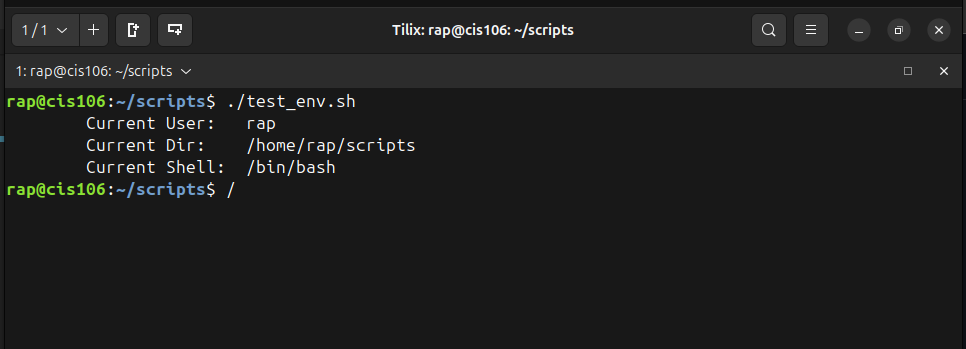
- Notice that the script uses tabs at the beginning of each line and before each variable value.
- Save and execute your script.

If you are doing this activity for the extra credit. Take a screenshot of the output of your script (terminal)
Practice 2: Using Environment Variables: Part 2
- Create a shell script that uses the
HOME,PWD, andOLDPWDenvironment variables to produce the following output
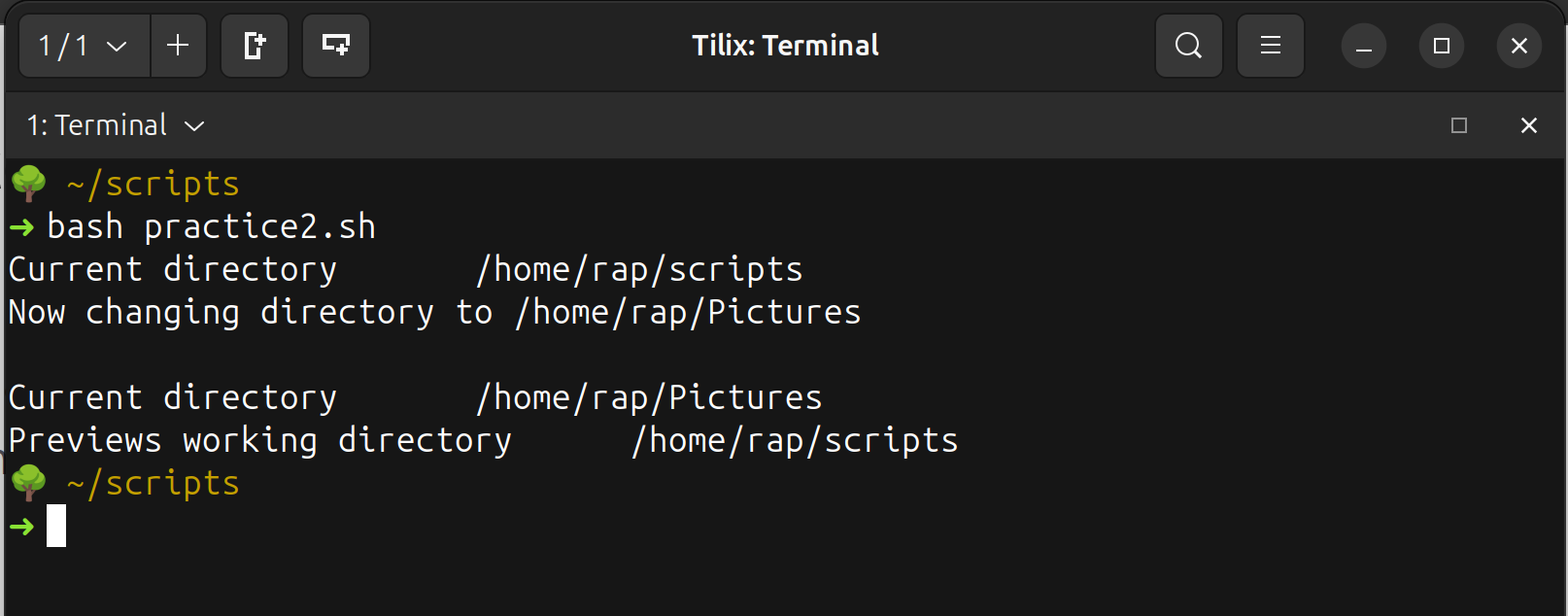
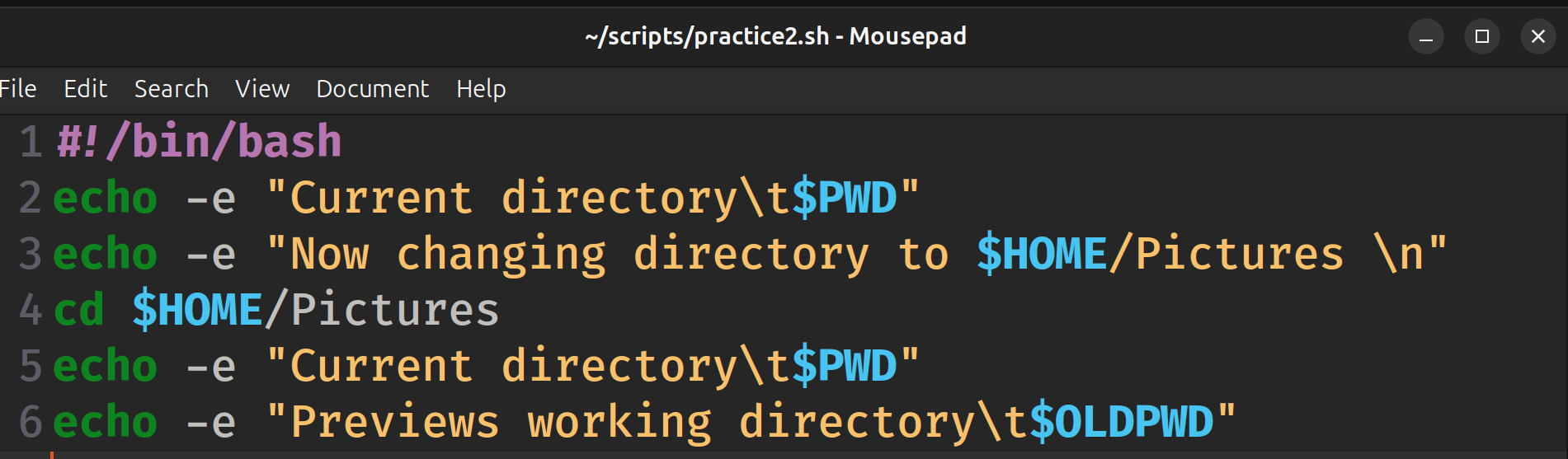
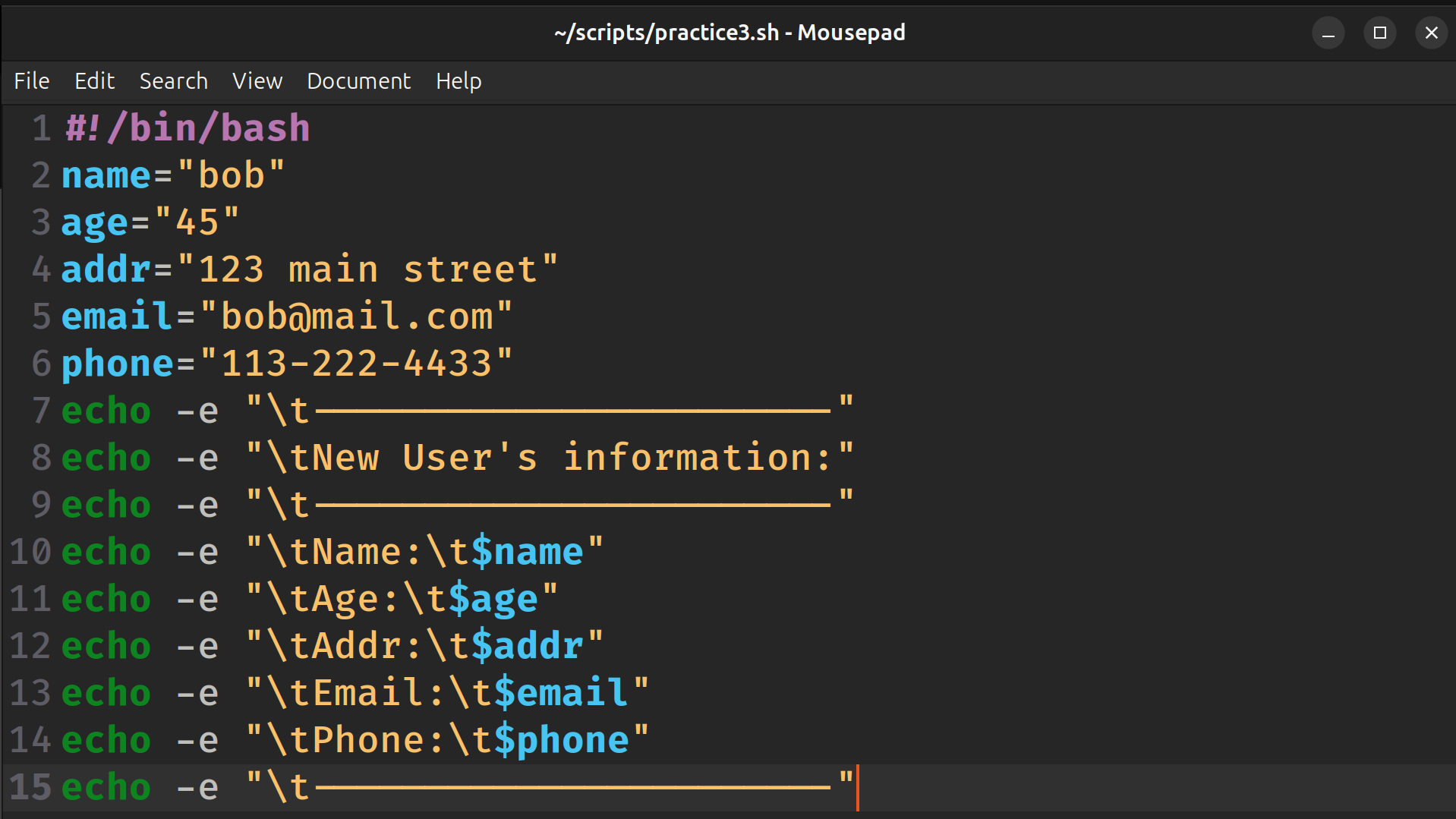
Practice 3: User defined variables
Create a script that uses user-defined variables to generate the following output:
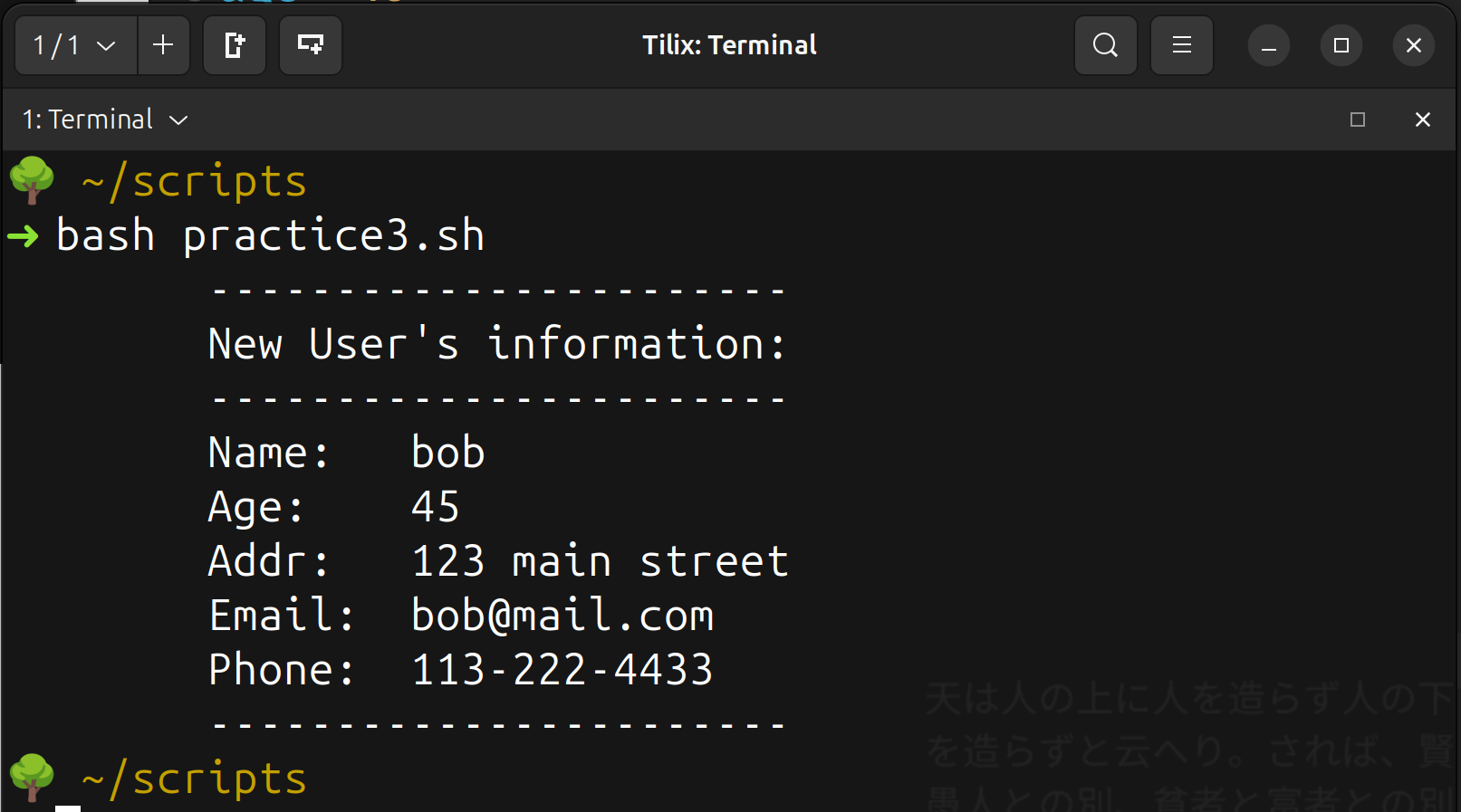
Practice 4: Bring it all together
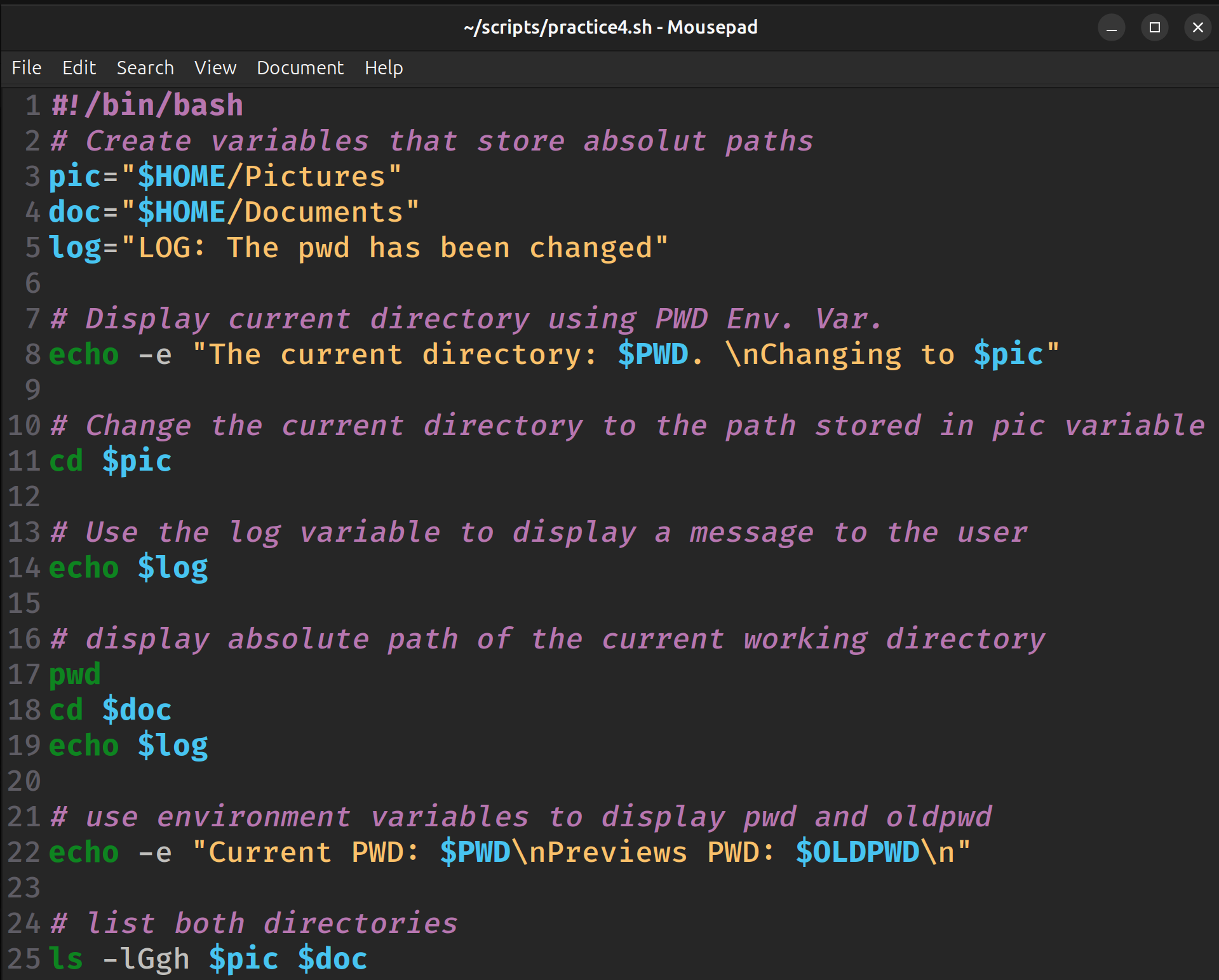
Create a shell script that will generate the following output:
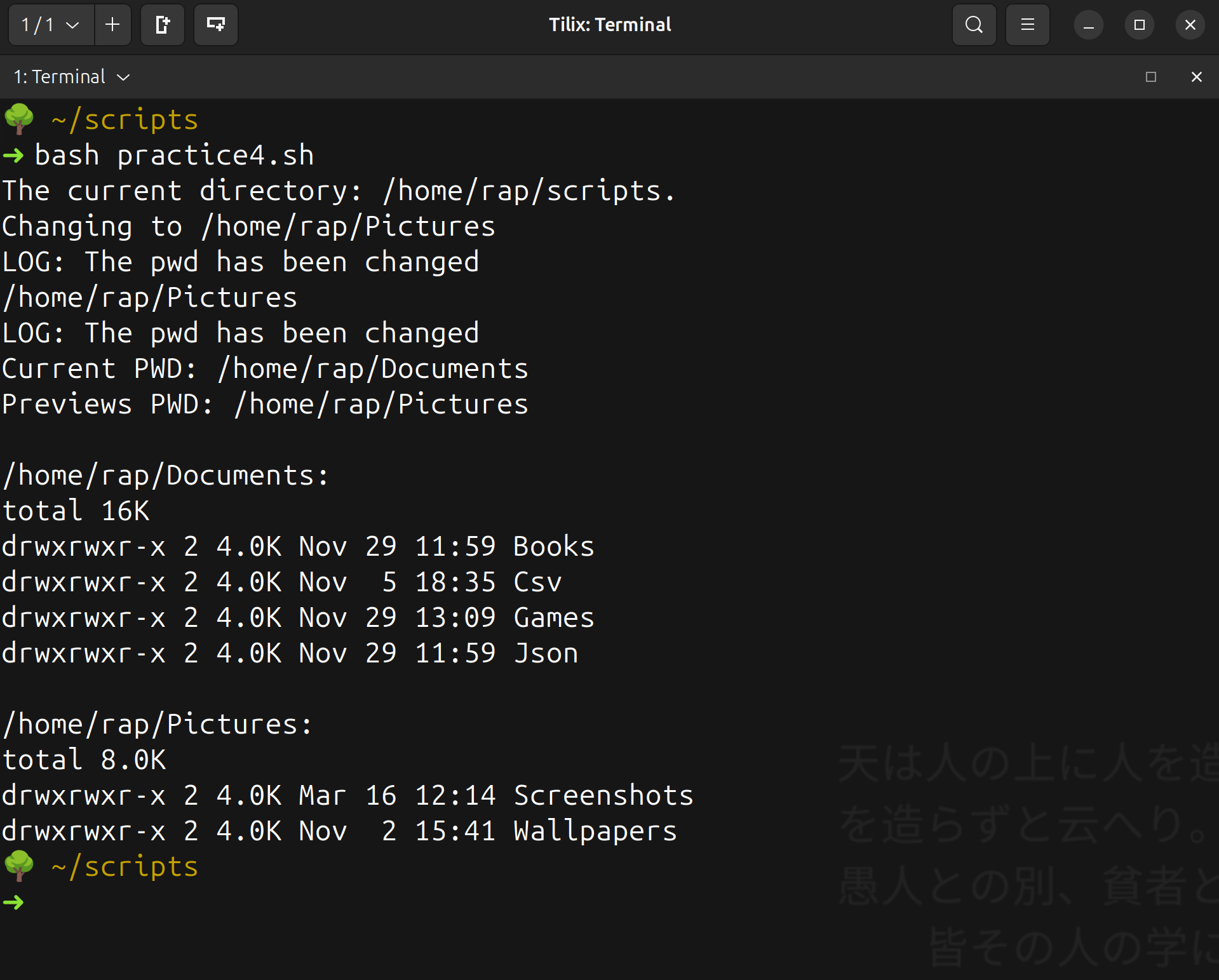
The script must use the following:
- Environment variables
- User defined variables
- The commands:
pwd,ls, andcd
What will you submit for extra credit
- In your cis106 directory/local repository, create a new directory called “
ExtraCredit” (Use one word with no spaces in directory names.) - Inside “
ExtraCredit”, create another directory called “extra4.2” - Open your cis106 directory/local repository in VS Code
- Inside “
extra4.2” create a markdown file called “extra4.2.md” - Add all the screenshots to “extra4.md” using proper markdown syntax and labeling each screenshot using heading 2 formatting. Save the markdown file.
- Your markdown document should start with the following heading1:
# Extra Credit 4.2: Bash Variables - Convert your file to PDF
- Run the github commands, in VS Code Terminal, to push all your changes to github:
gid add .git commit -m "Completed Extra 4.2"git push
- In blackboard submit the following:
- The URL of
extra4.2.md - The PDF file
extra4.2pdf
- The URL of