Extra Credit 5 - The Linux FS
What will you learn
- Learn how the Linux filesystem is organized, including the root directory, home directories, parent directories, and child directories
- Understand the difference between absolute paths and relative paths and when to use each one
- Practice navigating the Linux filesystem using essential commands such as cd, pwd, and ls
- Learn how special characters and environment variables work in Bash, including
~, .., $HOME, and $USER - Develop command-line problem-solving skills by completing realistic filesystem navigation and directory listing exercises
All The videos here
Other Review Videos:
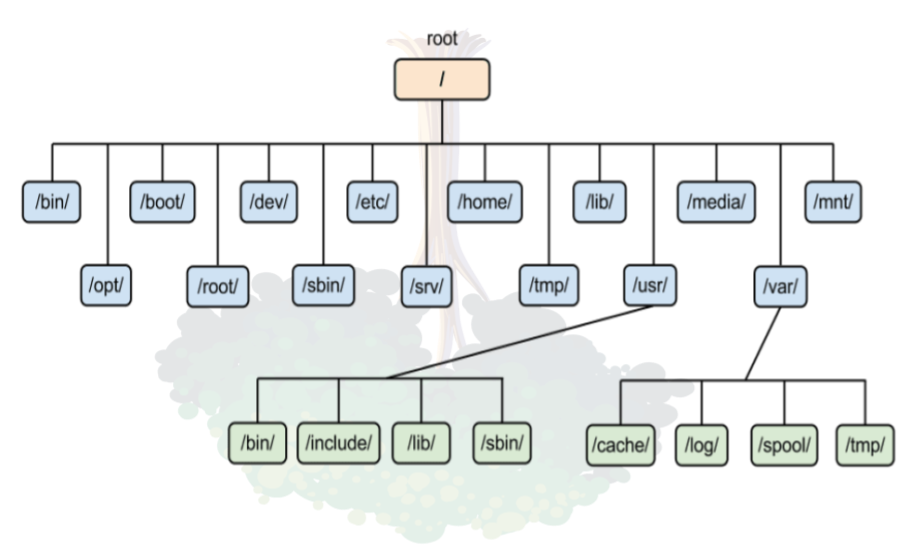
Basic Concepts
- The root directory: The first directory in the filesystem that contains the entire filesystem represented by “
/”. - Current working directory: Also known as the present working directory. It is the directory where you are currently working in. You are always working from a directory.
- Parent Directory: a directory that contains one or more files or directories.
- Child directory: A child directory is also called a subdirectory or subfolder. This is a directory inside another directory. See image for visual reference.
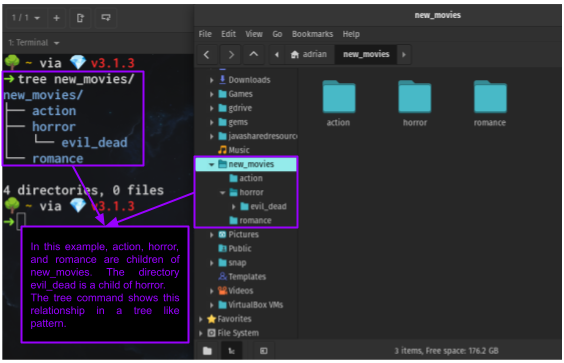
- YOUR HOME DIRECTORY: This is your user’s personal directory where all your files are located. Every user has their own home directory similar to how residents in an apartment complex each have their own apartment while sharing common areas. You have total ownership of your home directory but outside of your home directory, administrative privileges are often required to perform most tasks. An example absolute path, assuming that the username is
maria53, would be/home/maria53 - The home Directory: This is the parent directory of all the home directories. This is where all the users’ home directories are. The absolute path of this directory is
/home. Notice that the path starts at the root directory. - The root user: This is the administrator account of your system. To perform administrative tasks or to manage directories and files outside of your home directory, you must obtain root privileges using the
sudocommand at the beginning of the command. - Path name: Also known as file path. This is the location of a file or directory on your computer. A pathname can be either an absolute path or a relative path.
- Absolute Path: The location of a file starting at the root of the file system. For example,
/home/maria53/Downloads/list.txtis the absolute path of the filelist.txt. The advantage of absolute paths is that they can be used at any point of the file system regardless of your current directory. Any command that is given an absolute path will be able to find the file because it will start at the beginning of the filesystem. The disadvantage is that commands can become long and tedious to type if the file path is long. - Relative Path: The location of a file starting from a child directory of the current working directory or from the current directory itself. The advantage of using relative paths is that typing commands is faster. The disadvantage of relative paths is that they cannot work from anywhere in the filesystem. In order for a relative path to work, a file must be reachable from the current directory onwards. Another disadvantage of relative paths is that they require a stronger understanding of the Linux filesystem in the sense that you must keep a mental image of the directory tree that you are working with. An example of a relative path would be
Downloads/list.txtassuming that the current working directory is/home/maria53Special characters:
Special characters function like shortcuts that tell the shell to perform a specific action without having to type the complete command. These special characters make working on the command line more efficiently. Here is a short list to keep in mind.
- . (single period): represents the current directory.
- .. (2 consecutive periods): represents the parent directory.
- ~ (tilde character): expands the current user’s home directory. It is like a variable that the shell uses to store the absolute path of the user’s home directory. This
~/Downloadsis the same as typing/home/maria53/Downloads - / (one forward slash): as mentioned earlier, this is the root directory and the shortest path in the system. This is the beginning of the directory tree. All directories and files in Linux exist under the root directory.
- - (hyphen-minus): when used with the
cdcommand (cd -), it switches to the previous working directory. - # (hash or number sign): This is used for single line comments in shell scripting.
- ! (single exclamation mark): used for repeating a command from the history. For example
!5will repeat the 5th command in the command history. To view the entire command history typehistory. - !! (2 consecutive exclamation marks): are used for repeating the previous command. For example,
!!will repeat the previous command while,sudo !!will repeat the previous command but will addsudoat the beginning of the command. This is useful when you forget to typesudowhen performing administrative tasks.
Bash Environment Variables
- What is a variable?
- In programming, a variable is a place used to store data. A variable is like a box with a label. For example, if you have a lot of pens on your desk and you place them in a box labeled “pens”, now the box stores your pens. In programming a variable can be used to store temporary or permanent information that you will continuously reuse in your program. For example,
username='maria53'the variableusernamenow stores the valuemaria53. Whenever a program needs to access Maria’s username, it can do it by referencing the variableusername.
- In programming, a variable is a place used to store data. A variable is like a box with a label. For example, if you have a lot of pens on your desk and you place them in a box labeled “pens”, now the box stores your pens. In programming a variable can be used to store temporary or permanent information that you will continuously reuse in your program. For example,
- What is an environment variable?
- Environment variables store values of a user’s environment and can be used in commands in the shell. These values can be unique to the user’s environment which makes them ideal when writing commands that you want to use regardless of which user is using the computer. To see a list of your environment variables type
env. To use the value stored in an environment variable you must prepend the variable name with a$. Here are some useful environment variables: - $USER = stores the current user’s username
- $HOME = stores the absolute path of current’s user home directory
- $PWD = stores the absolute path of the present working directory.
- $OLDPWD = stores the absolute path of the previous current working directory
- Environment variables store values of a user’s environment and can be used in commands in the shell. These values can be unique to the user’s environment which makes them ideal when writing commands that you want to use regardless of which user is using the computer. To see a list of your environment variables type
Bash Tips:
- Tab Completion: autocomplete a command/pathname by pressing the tab key
- Arrow keys: allow you to navigate, edit, and repeat previous commands
- Ctrl + a: go to the start of the command line
- Ctrl + e: go to the end of the command line
Commands to Navigate the Linux Filesystem
To navigate the Linux filesystem, you only need to master 3 commands: cd, pwd and ls. While there are other useful commands, those can be considered supplementary and you should learn them after you have mastered those 3.
PWD
- Usage
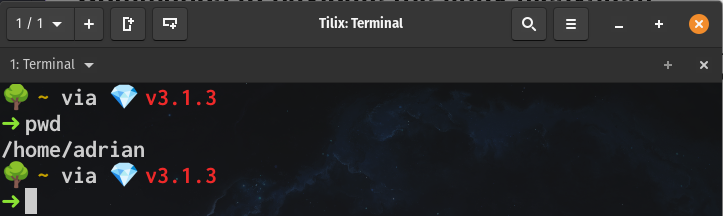
- Displays the absolute path of the current working directory.
- Formula
pwd
- Examples
- Print the absolute path of current working directory
pwd
- Print the absolute path of current working directory
CD
- Usage
- Changes the current working directory. In other words, it moves you from one directory to another. By default, it will always send you to your home directory.
- Formula
cd+destination absolute path or relative path
- Examples
- Go (change your current directory) to your home directory (there is more than one way of doing this):
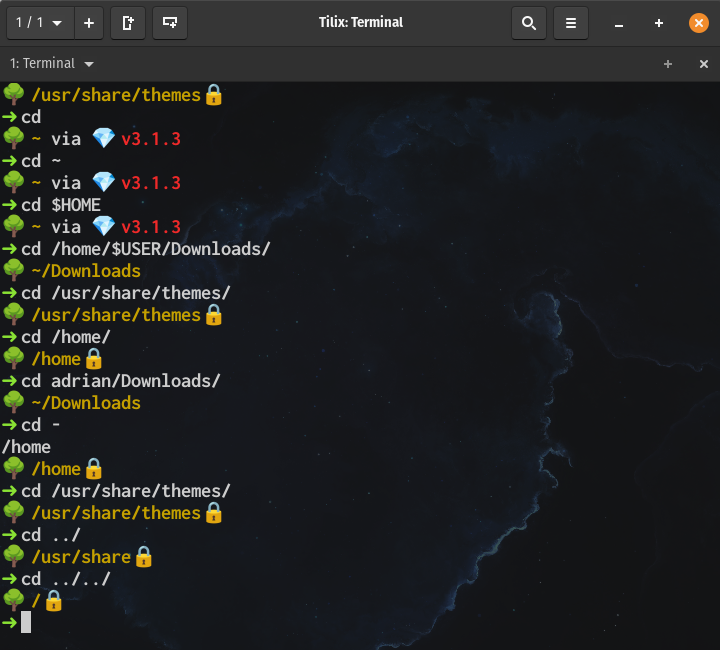
cd(without any arguments, cd will take you home)cd ~(using the~special character because~expands to the absolute path of the user’s home directory)cd $HOME(using the $HOME environment variable)cd /home/$USER/Downloads(using $USER environment variable in the path)
- Go to a specified directory with absolute path:
cd /usr/share/themes
- Go to a specified directory with relative path assuming your current working directory is
/homecd maria53/Downloads/
- Go to the previous working directory. This is useful when you are working with 2 directories located far in the directory tree
cd -
- Go to the parent directory (one directory above the current directory).
cd ../
- Go up two directories in the directory tree
cd ../../
- Go (change your current directory) to your home directory (there is more than one way of doing this):
Practice CD command:
Try to complete these tasks without looking at the solution. Use the image below as a reference:
- Using absolute path, go to the directory “
/usr/share/themes/Adwaita” - Go back to your home directory.
- Go back to the “
/usr/share/themes/Adwaita” using the - special character. - Go to the root of the filesystem using the “
..” special character. - Go to your “
Downloads” directory one directory at a time. Display your present working directory once you have reached the “Downloads” directory. - Go back to your home directory and then to the “
Pictures” directory.
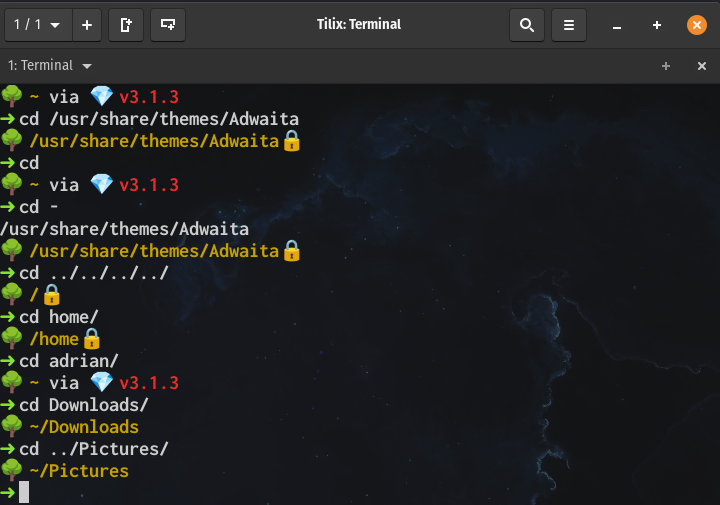
If you are doing this activity for the extra credit. Take a screenshot of the terminal showing all the commands you used to complete the practice
LS
- Usage
- ls is used for listing files and directories. By default, it lists the current directory when no directory is specified. Listing means displaying the contents of a directory.
- Formula
ls+option+directory to list
- Examples
- See all the options of the ls command (extracted from the man page):
ls --help
- List the current directory:
ls
- List all the files including hidden files in current directory:
ls -A
- List all the files inside a given directory:
ls -A /usr/share/fonts/X11(absolute path)ls -A Documents/(relative path assuming that the $PWD is $HOME)
- Long list a directory
ls -lA ~/Pictures
- List a directory recursively
ls -R Documents/
- Long list a directory only
ls -ld Documents/
- List a directory sorted by last modified
ls -t Documents/
- List a directory sorted by file size
ls -S Documents/
- Long list a directory excluding group and owner information, with human-readable file sizes and sorted in reverse order.
ls -lhgGr Documents/
- See all the options of the ls command (extracted from the man page):
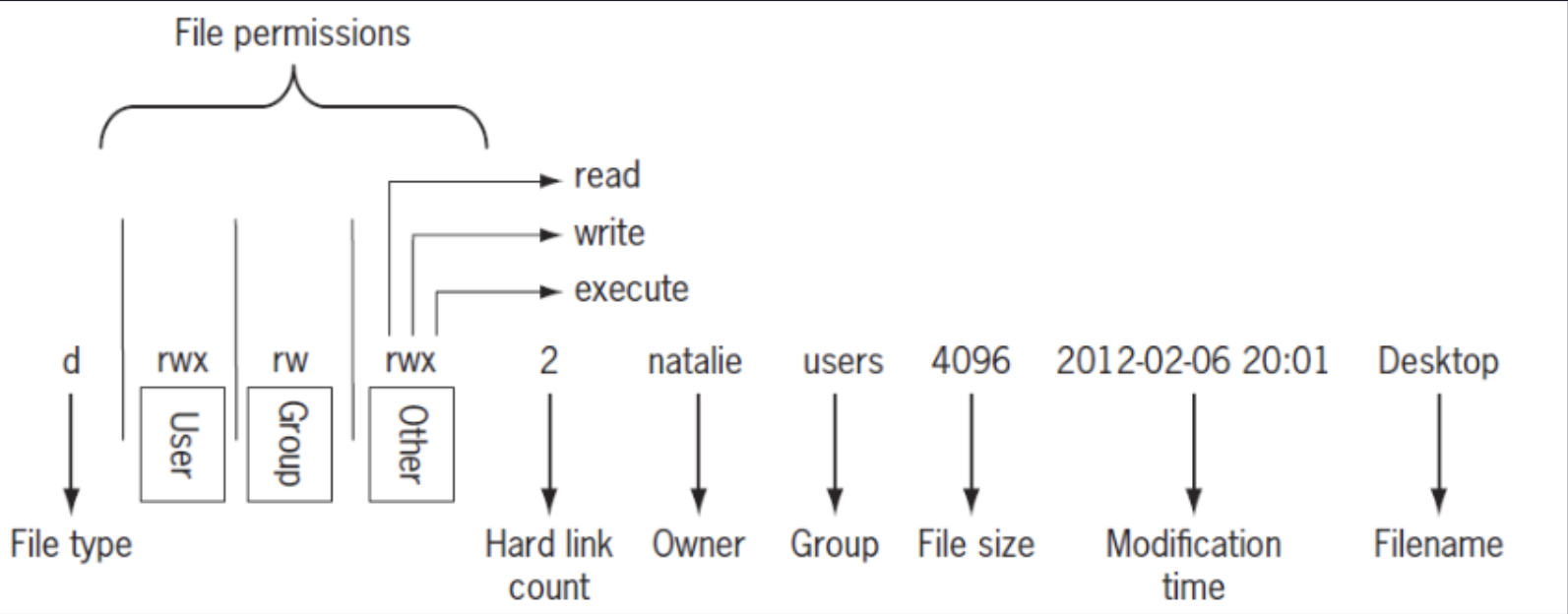
Output of LS -L explained:
Practice LS command:
Try to complete these tasks without looking at the solution.
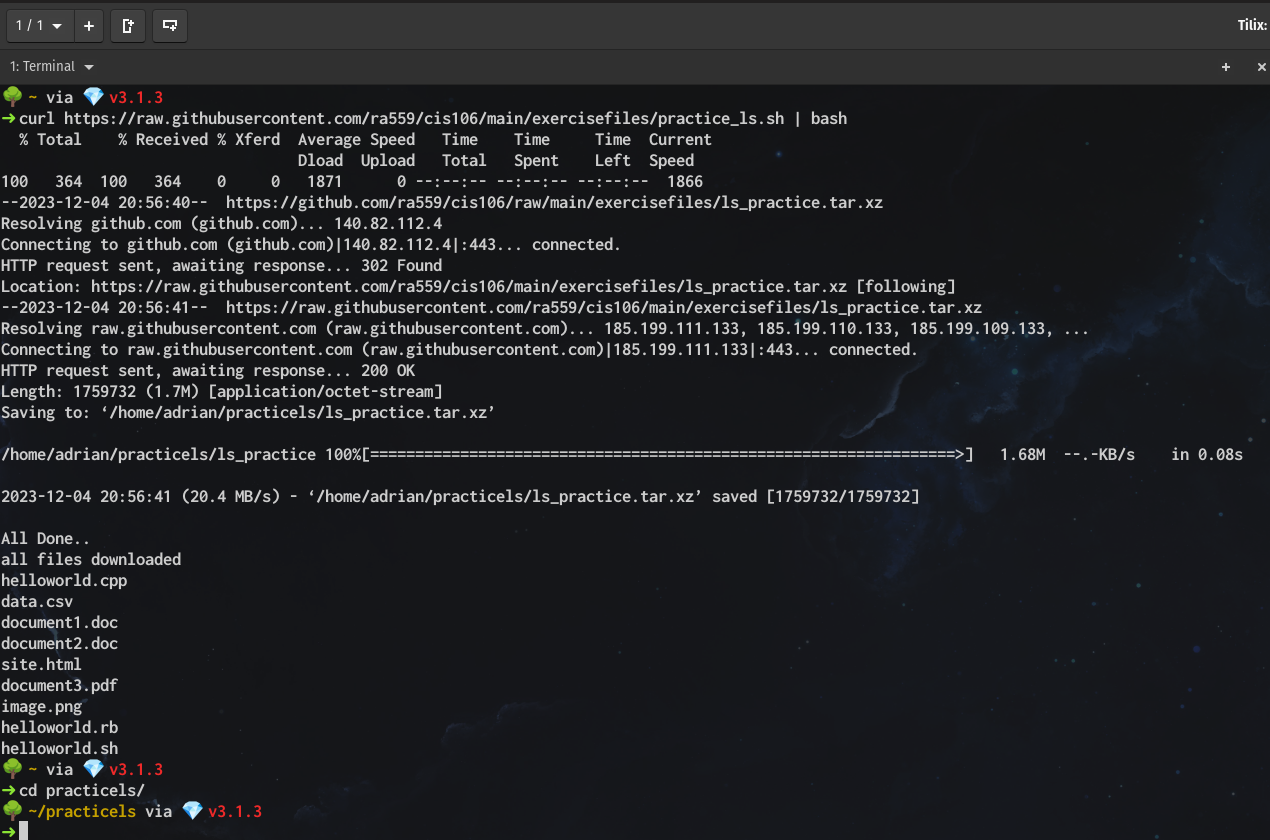
- Use this command to download some example files:
curl https://raw.githubusercontent.com/ra559/cis106/main/assets/scripts/practice_ls.sh | bash - The command above will create a directory in your home directory called
practicels. Here you will find 10 example files to practice thelscommand. If the command above did not work, read the output carefully and try to fix it yourself. You can also download the zip file on your own. You can also open the URL in your browser to review the script before running it.
- List all the files in the practice directory.
- Long list all the files in the practice directory.
- Long list all the files in the practice directory sorted by file size with human-readable file sizes
- Long list all the files in the practice directory sorted by file size with human-readable file sizes and in reverse order.
- Long list all the files in the practice directory without the group and owner, with human-readable file sizes, sorted by file extension and with full timestamps.
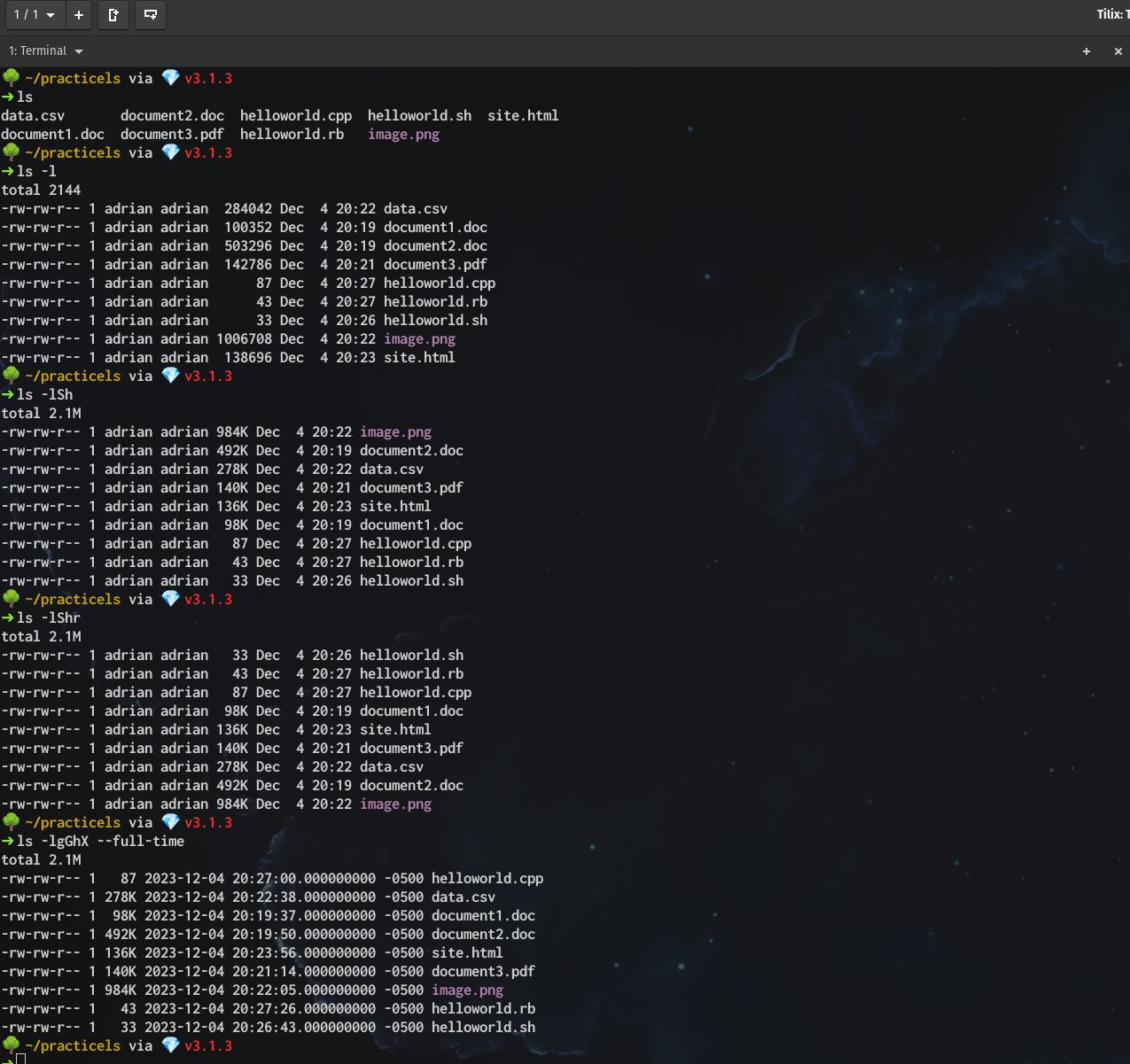
If you are doing this activity for the extra credit. Take a screenshot of the terminal showing all the commands you used to complete the practice
Tree
- Usage
- Used to display a recursive directory listing (tree) of files.
- Formula
tree+option+directory
- Examples
- Display a tree of the home directory
tree ~ortree $HOMEortree /home/$USER
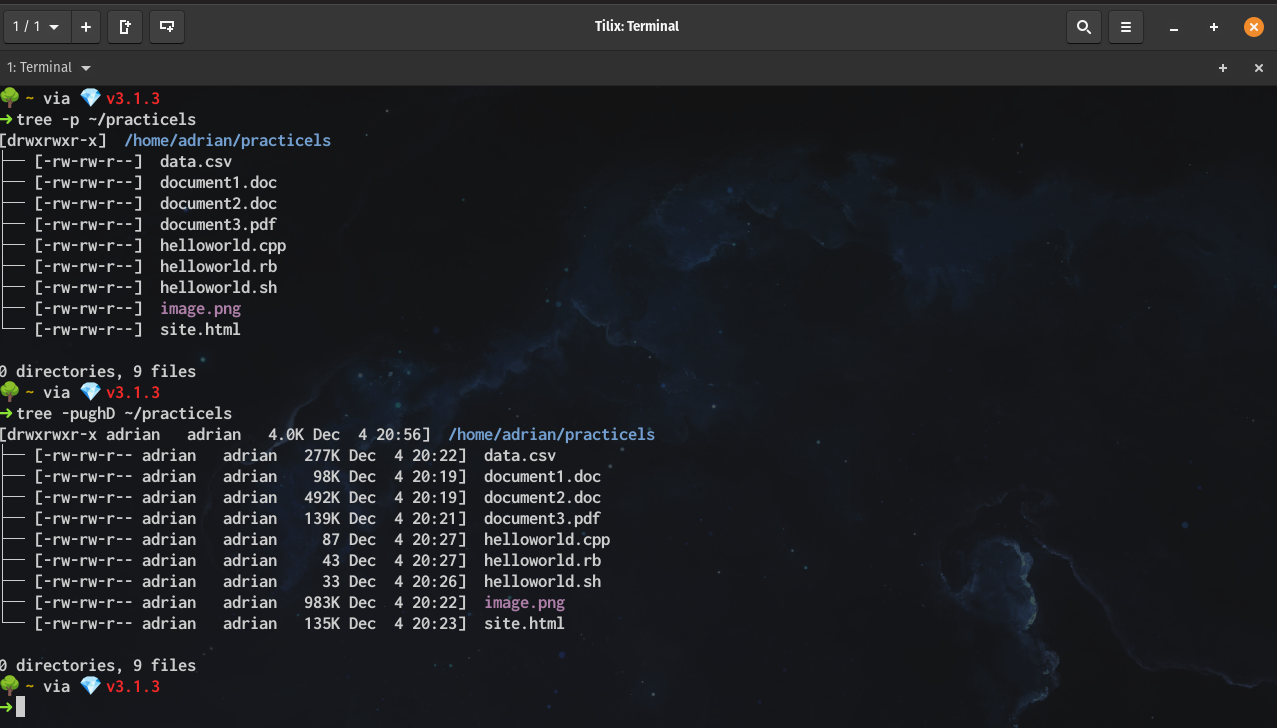
- Display a tree of a directory with file permissions
tree -p ~/practicels
- Display a tree of a directory with the full path prefix, with the user and group owner, human-readable file sizes, and the date of last modified.
tree -pughD ~/practicels/
- Display a tree of the home directory
EZA
- Usage
- Used similarly to
lsto list files and directories. Eza is a modern alternative tolswritten in Rust. Eza is not installed by default. You will need to install it using your Linux distribution package manager.
- Used similarly to
- Formula
eza+option+directory
- Examples
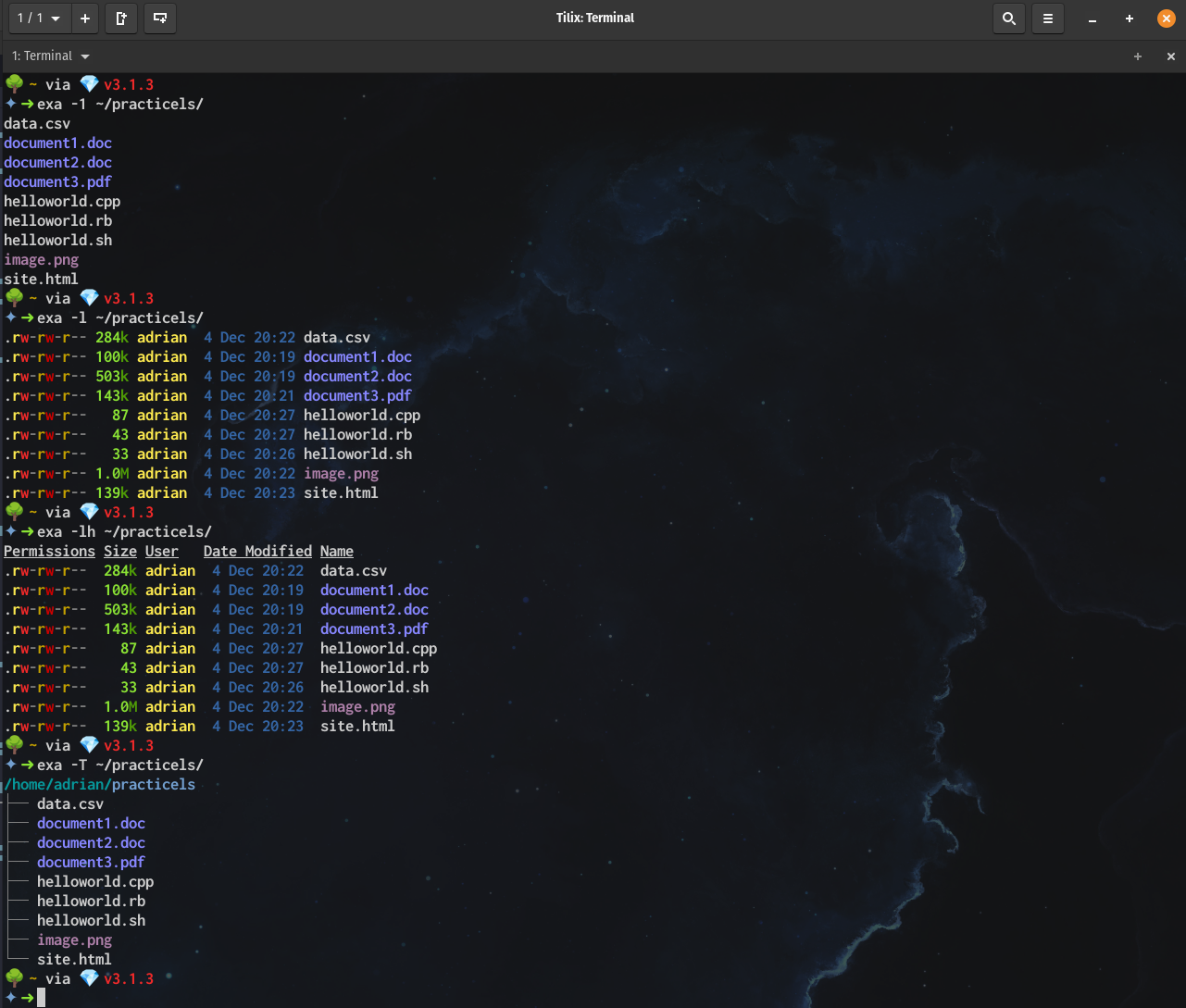
- List all files in a given directory in a single line
eza -1 ~/practicels
- Long list all the files in a given directory
eza -l ~/practicels
- Long list all the files in a given directory with headers
eza -lh ~/practicels
- List a directory in a tree like format
eza -T ~/practicels
- List all files in a given directory in a single line
What will you submit for extra credit
If this is your first extra credit assignment, you will need to create the necessary parent directory. In your
cis106directory (local repository), create a new directory calledExtraCredit(Use one word with no spaces in directory names.)
- Inside
ExtraCredit, create another directory calledextra5 - Open your
cis106local repository in VS Code - Inside
extra5, create a Markdown file calledextra5.md - Add all the screenshots you took earlier to
extra5.mdusing proper Markdown syntax and label each screenshot using Heading 2 Markdown headings. Save the Markdown file. - Your Markdown document should start with the following Heading 1:
# Extra Credit 5: The Linux FS - Convert your file to PDF
- Run the following GitHub commands in the VS Code terminal, to push all your changes to GitHub:
git add .git commit -m "Completed Extra 5"git push
- In Blackboard, submit the following:
- The URL of
extra5.md - The PDF file
extra5.pdf
- The URL of